GoodEdit
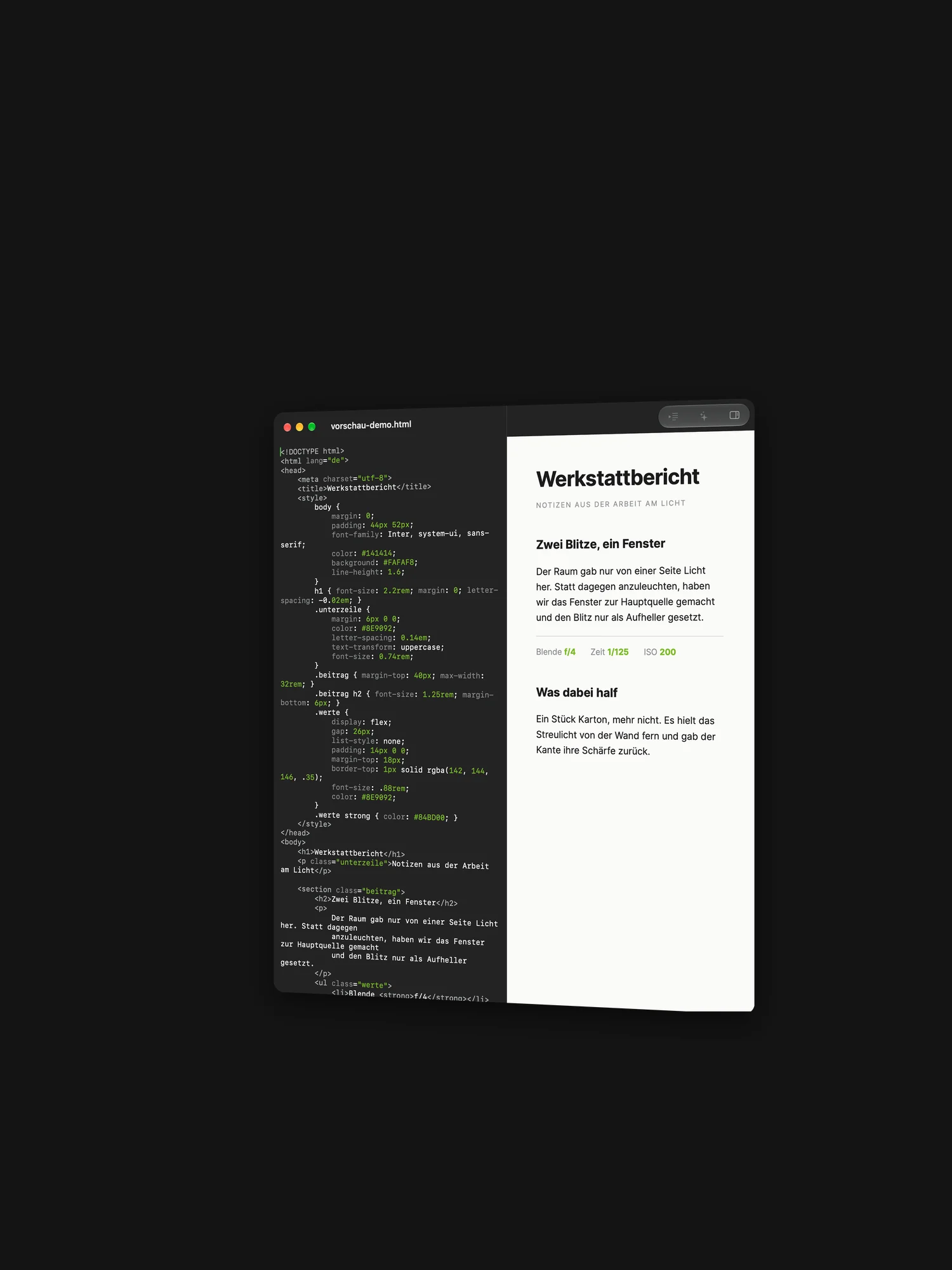
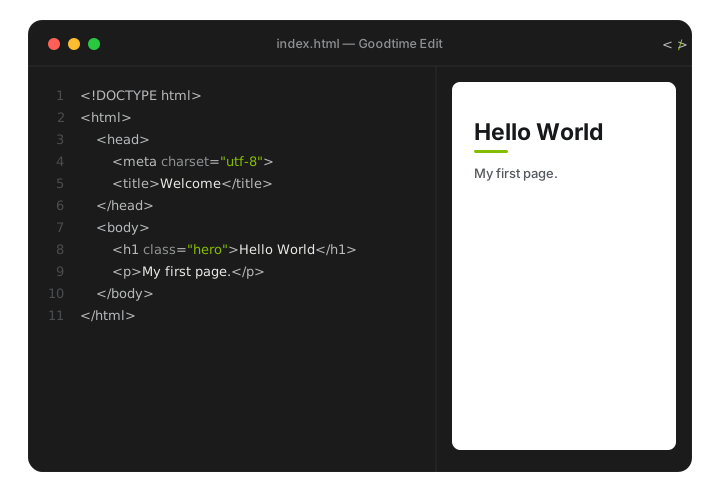
GoodEdit is a deliberately lean code editor for HTML, CSS, JavaScript and PHP – built for everyone who just wants to write, without being slowed down by a bloated development environment. Open, type, watch the live preview, save. Native to macOS, fast on Apple Silicon.
The app is a free homage to Taco HTML Edit by Taco Software – an editor that taught many of us the craft. GoodEdit takes no code and no artwork from the original; it carries its clear, uncomplicated approach forward in a modern redevelopment.
Version 2.0 · For macOS 14 (Sonoma) or later · Universal (Apple Silicon & Intel) · free
Note for the first launch: GoodEdit is a free hobby project and not notarized by Apple – that would require a paid developer account. macOS therefore shows a warning the first time you open it. To allow the app: unzip, drag it into your Applications folder, open it once and confirm the dialog, then click “Open Anyway” under System Settings → Privacy & Security. This is only needed on the very first launch.
Do you like GoodEdit? Support its development with a small donation.
New in version 2.0
Goodtime Edit is now GoodEdit
The name is shorter, and it matches the sister program GoodSort, which sorts paper instead of code. Both are built the same way: the same type sizes, the same button heights, the same way of choosing a language. Anyone who knows one will find their way around the other.
The old address redirects to this page. Existing settings are kept, nothing is lost.
Languages are files now
The interface no longer sits fixed inside the program, it lives in one text file per language. German and English are included. Anyone who needs another language copies the template, writes their own wording next to each German sentence and selects it in the settings. No programming knowledge is required.
If an entry is missing, that spot quietly falls back to German, so nothing stays blank. A button in the settings shows the folder in the Finder.
Feedback with one click
The help menu and the help window carry a button that opens your mail program with a prepared subject line. The program version and the system version are already in the text, nobody has to look them up.
What this program can do, it owes to the feedback of its users. Every reported special case, every note about an unclear label has made it a little better.
Interface font size can be set
The interface type can now be set from 12 to 20 point. The macOS default is laid out for small screens. On a large monitor it demands unnecessary closeness to the screen.
The font size of the editor is untouched by this, it is a setting of its own.
New in version 0.3.11
Check for updates from inside the app
There is no newsletter and no app store, so nobody finds out on their own that a new build exists. The About window now carries a „Check for update“ button right below the version number. One click asks jan-gutzeit.de which version is current and tells you whether yours still is. If a newer one exists, a second button brings you here.
Nothing about you is transmitted. The server only sees a public file being fetched, exactly as when you open this page in a browser. If you prefer, the check can also run at launch; that is switched off by default.
The folder access hint now appears reliably
In 0.3.9 the hint stayed away on subpages: the app quietly treated the opened
file's own folder as the site root. For a page inside a subfolder that is the
wrong level, paths such as /styles/style.css led nowhere, and there
was no way to choose the right root. The hint now stands until the project folder
has been released deliberately, and it also names the first file that was missing.
The preview now shows stylesheets, images and fonts
Until now the preview rendered a document without its surroundings: only inline
styles took effect, while linked CSS files and images were left out. The reason
was that the preview did not know what a path such as css/style.css
points to. GoodEdit now serves the page through its own internal scheme
and behaves like a small server for your project folder. The document itself
still comes straight from the editor, so the preview stays live as you type.
Root-relative paths such as /images/header.jpg therefore resolve
exactly as they later will on your server. That was not possible the previous way.
Grant access to your project folder once
macOS only allows the app to access the file you opened, not the folder next to it. A discreet notice at the top of the preview offers a „Grant folder access“ button. Choose the folder that is the root of your website. The permission is remembered and survives a restart. Files outside that folder are not read.
Preview edits reliably reach the code
Fixed: on real websites a text edit made in the preview was often discarded.
The app looked for the edited text in the file and appeared to find it more
than once — because the same word also occurred in attributes such as
aria-label, in comments, or as part of a longer sentence. Only
genuine visible text counts now, and when a word really does appear several
times, the preview reports which one you edited.
No more empty second window
Opening a file — via right-click in the Finder, say — also opened an empty window beside it. That blank window now steps aside as soon as a file appears; if you have already written in it, it stays. Starting the app without a file still gives you a blank document.
Files are no longer marked as edited on opening
Opening a file immediately counted as editing it, so closing it asked you to save although nothing had been typed. Only real changes count now.
What GoodEdit can do
Format syntax
One keystroke (⌃I) cleanly reindents your whole document – GoodEdit understands the nesting of your tags as well as curly braces in embedded CSS, JavaScript and PHP. New lines indent correctly as you type.
Color schemes
Syntax colors make tags, attributes, strings and comments distinguishable at a glance. Three schemes are built in – the subtle default, Classic and High Contrast – switchable in Settings, each tuned for light and dark mode.
Live preview
Editor on the left, preview on the right. The built-in web preview updates as you type – no round trip through the browser. And it works the other way round, too: click into the preview and edit the text right there – your changes flow back into the code instantly.
Multilingual
The interface speaks English and German and can be switched in Settings. Simple language files make it easy to translate GoodEdit into more languages.
Optional Claude assistant
If you like, add your own Anthropic API key and get help writing and checking code. The key lives safely in the macOS Keychain. Without a key, the app works fully.
How it works
1. Open & write. Launch the app – an empty HTML document is ready. Type in the left pane; new lines indent automatically.
2. Format syntax. Edit menu → “Format Syntax” (or ⌃I) cleans up the indentation of the whole document.
3. Toggle the preview. Use the preview button in the toolbar to show or hide the live view on the right.
4. Save. ⌘S saves as .html, .css, .js or .php – done.
You’ll find more detail in the app under Help → “GoodEdit Help” (⌘?).
Feedback
Missing something, hit a snag, or just enjoying GoodEdit? I'd love to hear from you – a quick note is plenty.
Homage & legal
GoodEdit is inspired by Taco HTML Edit (Taco Software) and was created in gratitude for that work. “Taco HTML Edit” and related marks belong to their respective owners; there is no affiliation with or endorsement by Taco Software. No source code and no artwork of the original were used.
Concept and redevelopment: Jan Gutzeit. The app is offered free of charge.